Academic writing often lives in two incompatible ecosystems. Microsoft Word is where collaboration happens—tracked changes, inline comments, and committee feedback. LaTeX is where publication happens—precise typesetting, journal templates, and mathematical formatting. Moving between these worlds has traditionally been frustrating, especially when Pandoc alone can’t handle template integration or citation workflows smoothly. As the repository notes, this process “often becomes cumbersome” when using Pandoc directly.
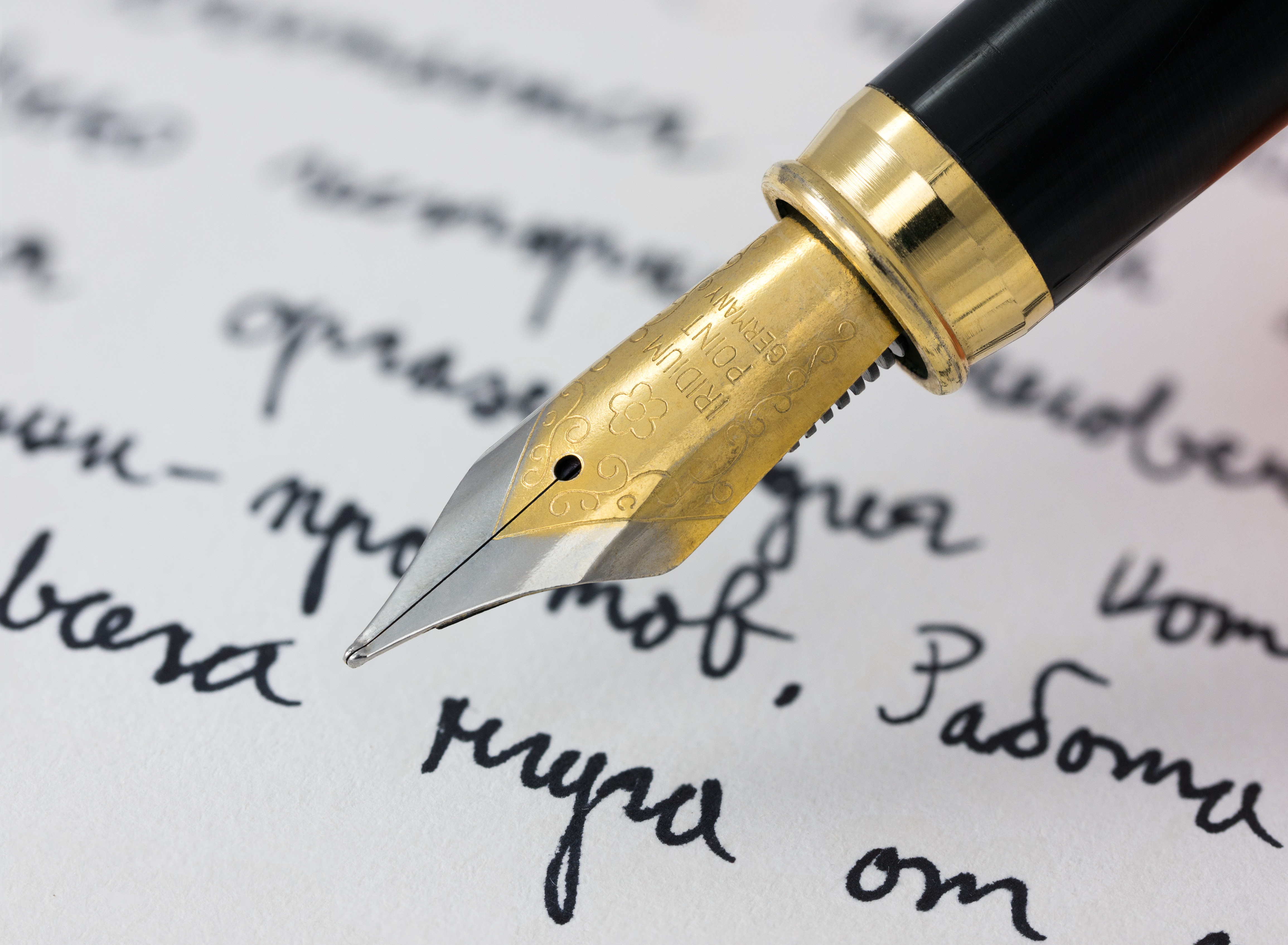
Image credit: Petar Milošević, CC BY-SA 4.0 https://creativecommons.org/licenses/by-sa/4.0, via Wikimedia Commons
paperajcli is a lightweight command‑line tool designed to solve this problem. It lets you write collaboratively in Word while producing clean, modular LaTeX files ready for any journal or thesis template. It’s a simple idea with a big impact: mark sections in Word, export them as LaTeX, and drop them into your template with zero fuss.
Why Word and LaTeX Still Need Each Other
Word remains the universal tool for drafting manuscripts with co‑authors, especially those who prefer not to touch LaTeX. It excels at:
- Commenting and tracking changes
- Quick edits
- Committee and multi‑author workflows
LaTeX, on the other hand, is essential for:
- Journal and thesis templates
- Bibliography control
- Mathematical typesetting
- Figure and table environments
- Cross‑referencing
The challenge is getting from one world to the other without losing structure, citations, or formatting. paperajcli provides a structured bridge.
What paperajcli Does
The tool works by detecting custom delimiters inside a .docx file and exporting each marked section into its own .tex file. The repository explains that it “exports each marked section into its own LaTeX file” using these delimiters.
Example
If your Word document contains:
<paperaj-introduction>
Introduction text…
</paperaj-introduction>

<paperaj-methods>
Methods text…
</paperaj-methods>
paperajcli produces:
introduction.texmethods.tex
as clean, modular LaTeX files.
Headings are preserved—Word’s H1 becomes \section{}, H2 becomes \subsection{}—ensuring your structure remains intact.
These files can then be included in any LaTeX template using:
\input{myfolder/methods.tex}
Native LaTeX Commands Inside Word
One of the most powerful features is that paperajcli preserves LaTeX commands written directly in Word. The repository confirms that commands like \cite{}, \href{}, \ref{}, \label{}, and math environments are “automatically un‑escaped during conversion”.
This means you can write:
“As shown in Figure \ref{fig:architecture}…”
directly in Word, and the LaTeX output will behave exactly as expected.
For citations, the tool is compatible with Zotero and other BibTeX‑based managers. The repository even includes a CSL file to ensure Pandoc citation compatibility.
Figures, Tables, and Cross‑References
Figures and tables are often the hardest part of Word‑to‑LaTeX conversion. paperajcli includes thoughtful post‑processing to make this seamless:
- Figure captions written as
Figure 1: Caption text
are converted into proper LaTeX figure environments. - Add TWOCOLUMN in Word to trigger
figure*environments. - Add LATEXROTATE to generate rotated figures via
sidewaysfigure. - Cross‑references like
Figure_1orTable_2are automatically converted to\ref{}commands.
All of these behaviours are documented in the repository’s post‑processing section.
A Clean, Reproducible Workflow
The repository outlines a recommended workflow that blends Word, LaTeX, Zotero, and Overleaf smoothly:
- Git Clone a LaTeX template from Overleaf.
- Run paperajcli to export Word sections into a directory inside the template.
- Insert each
.texfile using\input{}. - Manage citations in Zotero and export a
.bibfile. - Add the
.bibfile to your project and compile.
This workflow “keeps the collaborative convenience of Word while giving you the precision and template‑compatibility of LaTeX”.
How to Use the CLI
The primary command is:
npx paperajcli latex <input-file> <output-directory>
Arguments
- file: path to the
.docxfile - outputDir: where
.texfiles and media will be saved.
Useful Flags
--dry-runto preview actions without writing files.--extract-media/--no-extract-mediato control image extraction.--helpfor documentation.
Prerequisites
- Node.js 18+.
- Pandoc installed and available in PATH.
Where paperajcli Fits in the Writing Ecosystem
Pandoc
Pandoc is powerful but not template‑aware. It doesn’t split documents into modular sections or preserve custom delimiters. paperajcli adds structure and workflow on top of Pandoc.
Zotero + Better BibTeX
Zotero remains the easiest way to manage references. Exporting a .bib file ensures compatibility with LaTeX citation packages like natbib or biblatex.
Overleaf
Overleaf is the natural destination for collaborative LaTeX editing. With paperajcli, you can maintain a hybrid workflow:
- Draft in Word
- Convert with paperajcli
- Finalize in Overleaf
GitHub + CI
Because paperajcli outputs modular .tex files, it integrates well with:
- Git version control
- Automated LaTeX builds
- Continuous integration pipelines
Real‑World Use Cases
Graduate Theses
Committees often insist on Word drafts. Universities often require LaTeX templates. paperajcli bridges the two without manual rewriting.
Multi‑Author Manuscripts
When co‑authors refuse to use LaTeX, you can still maintain a LaTeX‑based submission pipeline.
Scientific Reports
Figures, tables, and equations survive the transition intact.
Institutional Templates
Many institutions provide rigid LaTeX templates. With paperajcli, you can drop in modular sections without restructuring everything.
Why This Workflow Matters
The academic writing process is rarely linear. Drafts move between collaborators, supervisors, editors, and reviewers. Word is the lingua franca of collaboration; LaTeX is the lingua franca of publication. paperajcli respects both worlds.
It gives researchers:
- A clean separation between drafting and typesetting
- A reproducible, template‑friendly workflow
- A way to preserve citations, math, figures, and structure
- A modular LaTeX output that plays nicely with Git and Overleaf
It’s a small tool that solves a big, persistent problem.

- Word to LaTeX: How paperajcli Bridges Two Academic Worlds - May 5, 2026
- When GenAI Ideas translate to practice with DHTI - March 4, 2026
- How DHTI Makes MCP Practical for Healthcare Through “Docktor” (Part IV) - February 4, 2026